You built an app in Google AI Studio, hit “Download,” and got a folder with a package.json, a src/ directory, and a vite.config.ts. Now you want it online at a real URL that you can share. The catch: a downloaded AI Studio project is source code, not a finished site, so most hosts make you run npm install, build it, and wire up a production server before anything loads.
This guide shows the short way: upload the project to InstaPods and get a live HTTPS URL in one click, with no terminal and no manual server setup. It also covers the GitHub route and what to do if your app calls the Gemini API.
If you want the one-line version: download your app from AI Studio, upload the ZIP to InstaPods, and it detects the Vite project, installs dependencies, builds it, and publishes the live URL for you.
Quick facts
| Question | Answer |
|---|---|
| What you download | A Vite + React + TypeScript project (a ZIP) |
| What it needs to go live | npm install, a production build, and a server to serve the build |
| One-click option | Upload the ZIP to InstaPods - it detects, builds, and serves automatically |
| Terminal required | No |
| HTTPS URL | Yes, included automatically |
| Gemini API key | Optional - only if your app calls Gemini, and it stays server-side |
| Also works from | A GitHub repo, or an import from v0, Bolt, or Lovable |
| Cost | From $3/mo |
What you actually get from Google AI Studio
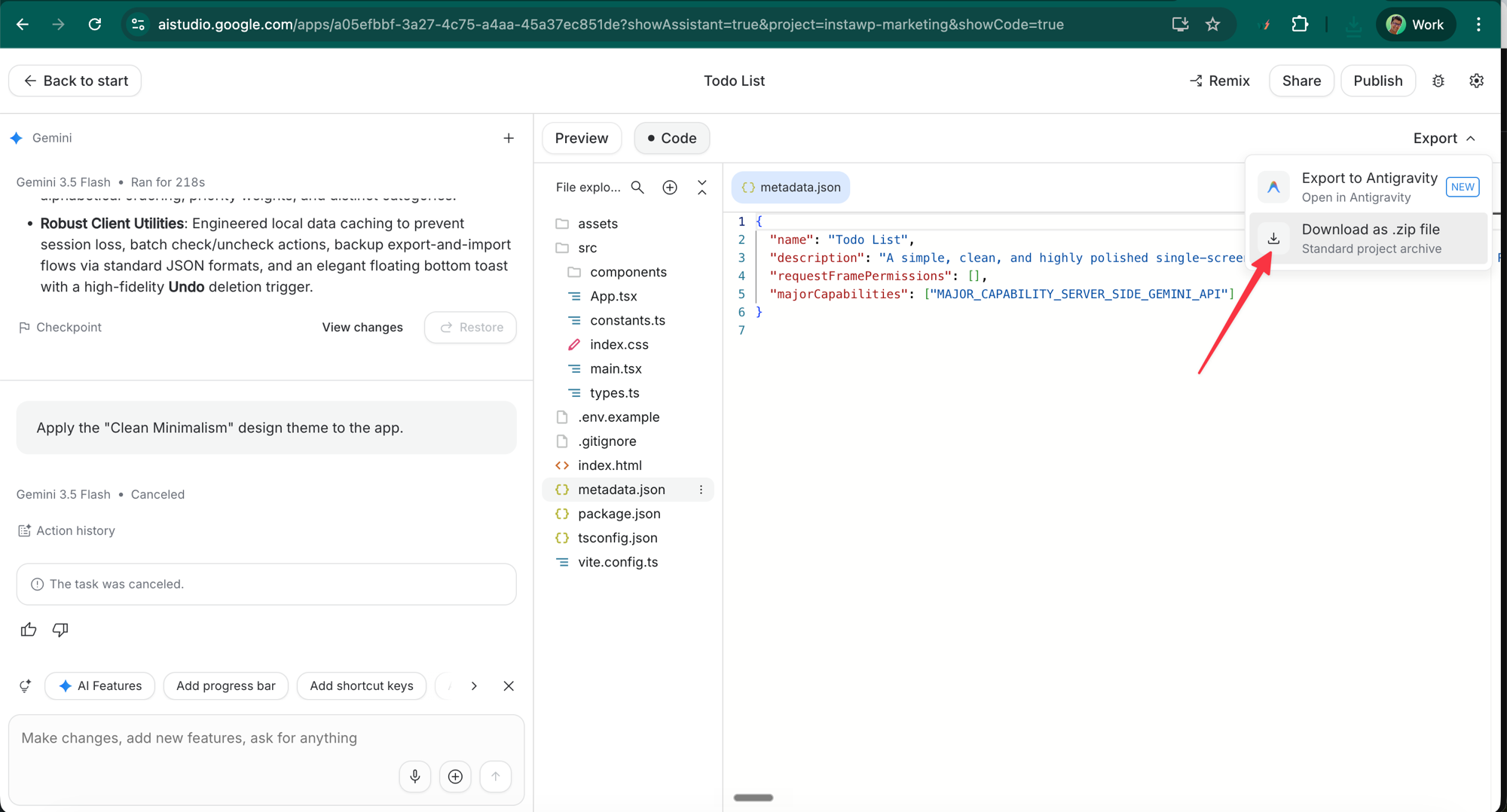
Google AI Studio lets you build small web apps on top of the Gemini models, then download the result. The Export → Download as .zip file option gives you a standard front-end project:
- a
package.jsonwith abuildscript that runsvite build - a
src/folder with your React/TypeScript code - an
index.htmlentry point - a
metadata.jsondescribing the app
This is great for editing locally, but it is not a website yet. To make it one, you have to install the dependencies, run the build (which produces a dist/ folder of static files), and then run something that serves that dist/ folder over HTTP. That last step is where most people get stuck.
Why “just upload it” usually does not work
If you drop the raw download onto a typical static host, it serves the source index.html, which points at /src/main.tsx. Browsers cannot run TypeScript directly, so you get a blank page. The project has to be built first.
If you put it on a typical Node host, it tries to start the app, finds no server file, and crash-loops. A Vite project builds to static files; there is no node index.js to run unless you add one.
So the real, working recipe is always:
npm installnpm run build(producesdist/)- serve
dist/with single-page-app routing - put HTTPS in front of it
The goal is to never have to think about those four steps. Here is how.
The one-click way: upload the ZIP
- In Google AI Studio, open your app, click Export (top right of the Code panel), and choose Download as .zip file.
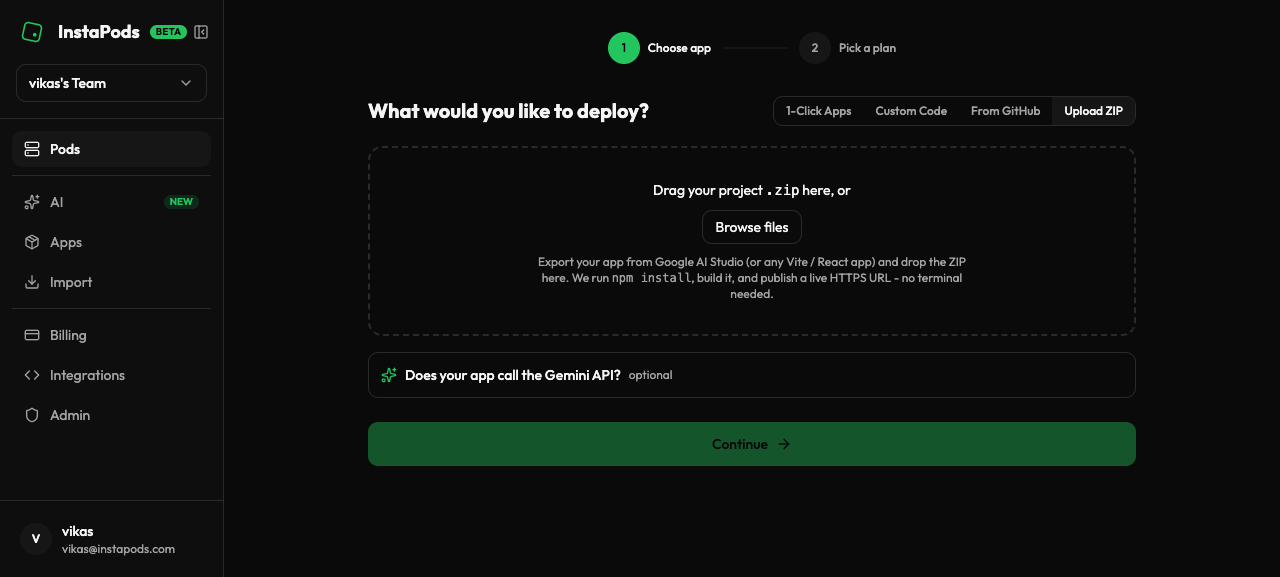
- In InstaPods, go to Create pod and choose Upload ZIP.
- Drag the ZIP in (or browse to it) and click deploy.
On the InstaPods side, the “Upload ZIP” tab is all you touch: drop in the file, and the optional Gemini key field is the only other thing on the screen.
That is it. InstaPods detects that it is a Vite/React project, extracts the ZIP, runs npm install, runs the production build, finds the dist/ folder, sets up the production server automatically, and publishes a live HTTPS URL. Deep links work too, so a route like /dashboard loads instead of 404ing.
You never touch a terminal, and there are no build commands or start scripts to write. When the build finishes, you get a URL like https://your-app.instapods.app/ that stays online across restarts.
The GitHub way
If your project lives in a GitHub repo (for example, you pushed your AI Studio download, or you are working from a v0/Bolt/Lovable export), you can deploy straight from the repo instead:
- In Create pod, choose From GitHub.
- Paste the repo URL (or connect GitHub to pick a private one).
- Deploy.
The same detection runs: it sees the Vite project, installs, builds, and serves it. Every push after that redeploys automatically.
If your app uses the Gemini API
Most simple AI Studio apps (a to-do list, a calculator, a UI demo) do not actually call Gemini at runtime, so there is nothing extra to do.
If your app does make Gemini calls, there is an optional field where you paste your Gemini API key (you can get one free at aistudio.google.com/apikey). InstaPods stores it as a private, server-side environment variable. For apps that proxy Gemini server-side, the key is never shipped to the browser.
Frequently asked questions
Do I need to know how to code to deploy an AI Studio app? No. The upload flow handles the install, build, and server steps for you. You download the ZIP from AI Studio and upload it; nothing else is required.
Will my app stay online after I close my laptop? Yes. It runs on a server and stays live, including after the pod restarts.
Does it work for any Vite or React app, not just AI Studio? Yes. The same flow works for any Vite/React project, whether it came from AI Studio, v0, Bolt, Lovable, or your own code.
Can I use a custom domain? Yes. You get an HTTPS subdomain by default, and you can point your own domain at the pod.
How much does it cost? Plans start at $3/mo, and new accounts get $10 in free credit to start.
The takeaway
A Google AI Studio download is a real Vite project, which means it needs a build and a server before it is a website. The fastest path is to skip all of that: upload the ZIP (or connect the repo) and let the host detect, build, and serve it for you.
Try InstaPods → - Get your AI Studio app online in one click. Starts at $3/mo, with $10 free credit.